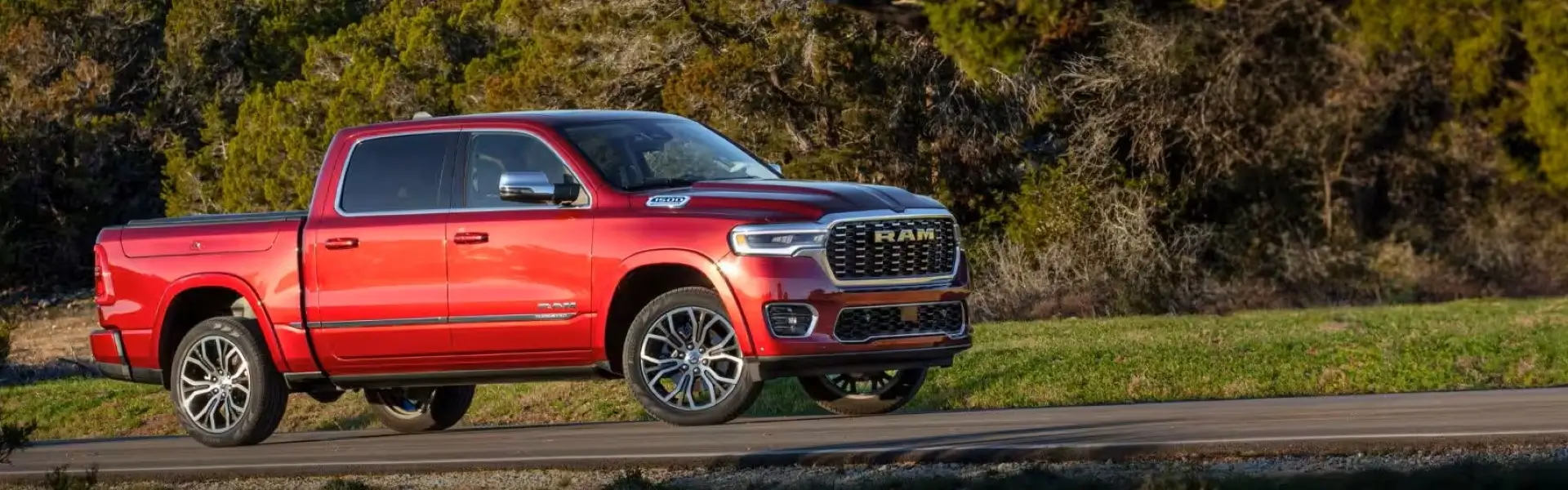
Get the Latest Ram 1500 Navigation Maps
Keeping your Ram 1500 Uconnect navigation system updated ensures you always have the newest roads, points of interest, and optimized routing. This guide walks you through the entire process of downloading the official Ram map update — from checking compatibility to preparing your USB drive and starting the installation. Follow each step carefully to avoid errors and enjoy a seamless GPS experience.
📋 Before You Start: What You'll Need
- USB Flash Drive – Minimum 32GB, formatted to exFAT or FAT32 (64GB+ recommended for full map data).
- Windows PC or Mac – With stable internet connection for downloading large map files.
- Ram 1500 VIN – Your vehicle identification number to verify compatibility.
- Uconnect System Version – Know your screen size (8.4-inch or 12-inch) and software revision.
- Active Subscription or Map License – Purchase a valid map update license from official source.
- Vehicle Ignition Time – Installation requires about 40-60 minutes with engine running or in ACC mode.
⬇️ Step-by-Step: How to Download Ram 1500 Map Update
Check Your Current Uconnect Map Version
Before downloading, identify your current map software to ensure you need an update.
- Turn on your Ram 1500 and go to the Apps menu on Uconnect touchscreen.
- Select Settings → System Information → Map / Navigation Version.
- Note down the map version, software version, and your unit’s part number.
- Visit the official Ram map portal and enter your VIN to confirm available updates.
Purchase Official Map Update License
Map updates require a one-time purchase or subscription renewal. Download is only available after purchase.
- Go to the authorized Ram navigation update store (or use our secure portal: Buy Ram Map Update).
- Provide your VIN and select the correct Uconnect system (8.4-inch NAV, 12-inch, or older models).
- Complete payment – you will receive a confirmation email with a unique activation code and download link.
- Keep your license key safe; you’ll need it during installation or activation.
Download the Map Update Package to Your Computer
This is the core step where you actually download the Ram 1500 map files.
- Click the download link from your purchase email or log into your Ram map account.
- A large ZIP or executable file will begin downloading (typically 15GB – 28GB depending on region).
- Important: Do not interrupt the download. Use a wired Ethernet connection if possible for stability.
- Once download completes, locate the file in your "Downloads" folder. File name usually contains "RAM_Uconnect_Map_Update" and region.
- If the file is compressed (.zip), extract all contents to a folder on your desktop using WinRAR or built-in extractor.
Prepare USB Drive for Installation
The map files must be properly transferred to a USB drive that the Uconnect system can read.
- Format USB: Insert USB into computer. Right-click drive → Format → File system: exFAT (or FAT32 if exFAT not available). Set Allocation unit size to Default. Uncheck Quick Format for best results.
- After formatting, rename the USB drive to "RAM_UPDATE" (no quotes) for easy identification.
- Copy the extracted map update folder/files directly to the root of the USB drive (do not place inside any subfolder unless instructions specify).
- Once copying is complete, safely eject the USB drive from your computer.
Install Map Update in Your Ram 1500
Now it’s time to transfer the downloaded map update into your vehicle’s Uconnect system.
- Start your Ram 1500 engine (or put in ACC mode to keep battery from draining).
- Insert the prepared USB drive into the vehicle’s USB port (usually in the center console or front media hub).
- The Uconnect screen should automatically detect the update. A message appears: “New map update available. Install now?”
- Tap Install and follow on-screen prompts. Do not remove USB or turn off ignition during installation.
- Installation takes 30–60 minutes. The system may restart several times — this is normal.
- Once completed, you’ll see “Map Update Successful.” Remove the USB drive and restart the vehicle to enjoy new maps.
Activate Your Map License (If Required)
Some Uconnect systems require entering the activation code after installation.
- After reboot, go to Navigation → Settings → Map License / Activation.
- Enter the 20- or 25-digit activation code you received via email after purchase.
- Press “Activate” – your maps are now fully functional with updated roads and POIs.
- If you face activation errors, visit our Ram Activation Support page for troubleshooting.
🔄 Alternative Download Options & Common Issues
📡 Over-the-Air (OTA) Updates for Newer Ram Models
If your Ram 1500 is equipped with a 12-inch Uconnect 5 system and an active connected services subscription, you may download map updates directly via Wi-Fi or cellular connection without USB. Go to Settings → System Updates → Check for Updates and follow the wireless download process. Ensure your vehicle is parked with strong Wi-Fi signal.
❌ Download Stuck or Slow? Solutions
- Pause and resume: If download freezes, pause for 10 seconds and resume.
- Clear browser cache: Cached files can interfere with large downloads. Use Chrome or Firefox in incognito mode.
- Use Download Manager: Tools like Free Download Manager help resume interrupted downloads.
- Firewall/VPN: Temporarily disable VPN or firewall as they may throttle large file transfers.
💾 USB Not Recognized by Uconnect?
- Reformat USB to exFAT (most reliable for large map files). Avoid using USB 3.0 drives in older Uconnect ports? Use USB 2.0 port if available.
- Ensure the extracted files are in the root directory, not inside a folder named “RAM Map”.
- Try another USB port in the vehicle (some models have data-only ports).
- Restart Uconnect by pressing and holding volume and tuner knobs for 10 seconds.
📌 Ram 1500 Map Update Compatibility & File Sizes
| Uconnect System | Model Years | Typical Download Size | USB Format Required |
|---|---|---|---|
| Uconnect 3.0 / 4C NAV (8.4-inch) | 2013–2017 | 12–18 GB | FAT32 or exFAT |
| Uconnect 4C NAV (8.4-inch, newer) | 2018–2021 | 18–24 GB | exFAT |
| Uconnect 5 (12-inch & 8.4-inch) | 2022–2026 | 22–28 GB | exFAT (OTA also available) |
| Ram Classic with NAV | 2019–2024 | 16–22 GB | exFAT |
✅ Pro Tips for a Smooth Download & Installation
- Battery tender: If your Ram has Start/Stop, consider using a battery maintainer during long USB install.
- Verify checksum: Some download portals offer MD5 checksum — verify file integrity after download to avoid corruption.
- Backup old maps: In rare cases, you can revert to previous version if needed (dealer assistance).
- Stay patient: The update process may appear frozen at 75% for up to 15 minutes. Do not interrupt.
- Update Uconnect software first: For best results, ensure your Uconnect radio firmware is up to date before installing new maps.